Reassigning Tasks
When a task is created, the user who created the task is also assigned to it, by default. You can reassign a single task or a group of tasks to another user, provided you have the proper role permissions to do so.
Prerequisites: You must have the appropriate 'Create' or 'Edit' task functions enabled for your role.
To reassign tasks
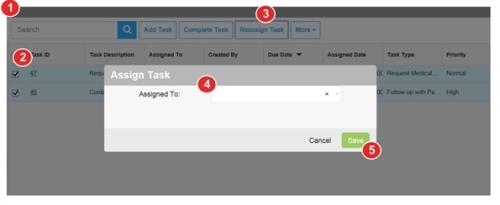
- On the Task Management page, locate the task(s) to be reassigned (page 1).
- Select the task(s) you want to reassign.
- Do one of the following:
- For a single task, go to More > Reassign Task.
- For multiple tasks, click Reassign Task.
- In the Assigned To field of the Assign Task
- Note: For module-specific tasks, only users with the proper
-
Click Save.
The task record is updated to show the name of the newly assigned user. An email notification is sent to the assigned user. The assigned user can click on a link contained in the email to launch RL6 and open the task.
To reassign tasks
- In the TasksA unit of work, such as a follow-up, review or request for information, which can be tied to a specific file. page, locate the task to be reassigned.
- Check the box next to the task and click Open. The Add/Modify Task
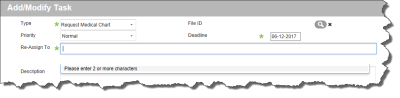
- In the Re-Assign To field, click the X next to the name of the assigned individual. The individual is removed from the field.
- In the Re-Assign To field, enter two or more characters of the user’s user ID, first or last name and choose the user from the list of matches.
- Click OK to save.