Related Tasks
Changing the Image Displayed on the Login Page
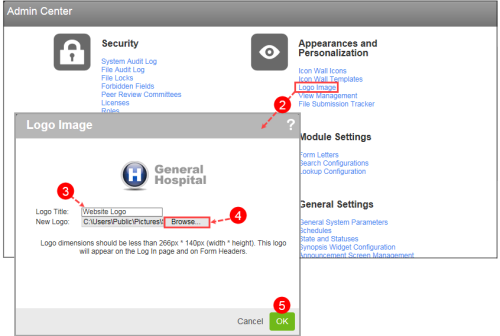
Administrators can upload an image, such as a hospital logo, that will appear in the Logo widget. This widget is displayed when a file has been opened. In order for the image to display properly in the widget, it should be no greater than 266 pixels wide by 140 pixels high.
Prerequisites: The 'Logo Image' role function must be enabled.
To change the image on the Login page:
- Click the Logged in as menu and click Admin
- Under the Appearances and
- Enter the Logo Title. This value is used as the widget caption on the management form.
- Click Browse to locate and select the image file on your computer or network that you would like to use as the widget image. Then, click Open. The path to the file is displayed in the New Logo field.
- Click OK. The